Inserting by Keywords
The easy way to find and insert illustrations in your Paratext project
The best way to insert illustrations into your Paratext project is to insert the sample illustrations as
placeholders, as you can search for appropriate illustrations using keywords, directly from Paratext’s
Insert Figure dialog.
Download and Unzip Image Files and Folders
Visit the SIL Illustration Samples folder as per the instructions at the Sample Illustrations page.
- Either browse within the appropriate language folder for the sets of images you want, and download those OR
- Download all images by right-clicking on the language folder and selecting Download.
- Note that these are low-resolution watermarked images.
- In all cases except for WBT image sets licensed under CC, the full-resolution originals are available only for bona fide typesetters, who will automatically substitute them for your sample images at typesetting time.
Unzip this collection to a folder within your Pictures folder.
- This will ensure that the images are included in Windows’ search index.
- If you’d rather store these files in another location, add that folder to Windows’ search indexing. Here’s how to add it.
- Troubleshooting: On some systems, the Windows Search Index might be able to return results for filenames but not for key terms, such as “sheep” or “LUK02”. This may be because it’s been somehow corrupted or misconfigured.
- If you are unable to diagnose and correct the problem, one workaround is to open the File Explorer App, click on the “3 dots” menu (for More menu items), then click on Options to open the Folder Options dialog. Next, click on the Search tab. Finally, under the heading “When searching in non-indexed locations”, check the option for “Always search file names and contents”.
- Alternatively, you can explicitly search for key terms by prefixing them with “tags:”. For example, “tags:sheep AND tags:LUK02”
Find and Insert Images in Paratext
- In Paratext, position the cursor in the passage where you want to insert a picture.
- Go to the Project menu > Insert > Figure…
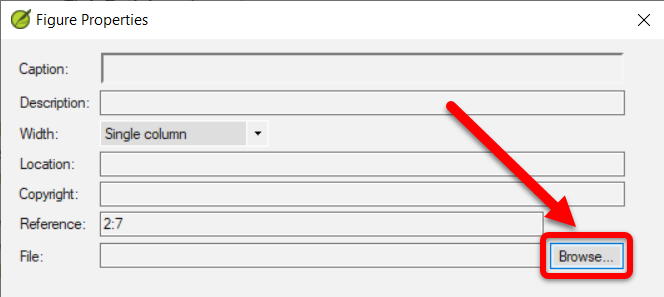
- Click the Browse button:
- Navigate to the folder where you unzipped your collection.
- Click in the SEARCH box in the top right corner:
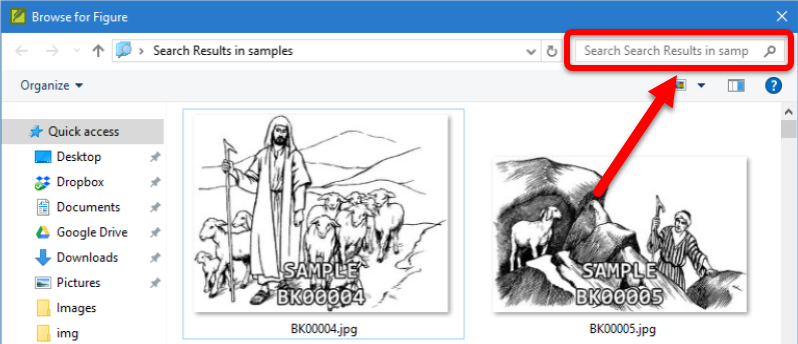
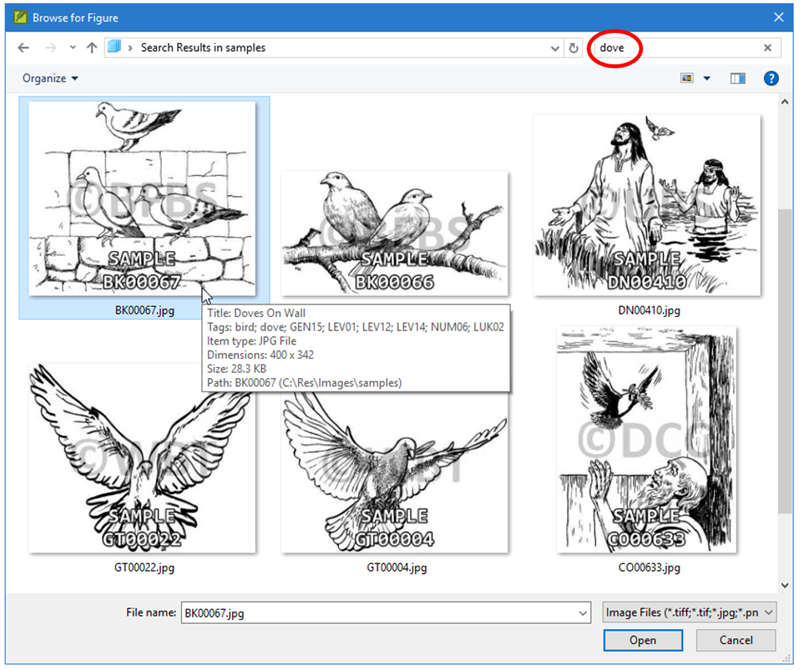
- Enter one or more terms to search for.
- For example: baptism or dove:
There are a number of search terms/filters you can use:
| Search Term/Filter | Description | Example(s) |
|---|---|---|
| {keyword} | Search for an image by keyword. | dove baptism altar |
| Bible book | Search for a book using the 3-letter Paratext book code. | GEN MRK LUK |
| Chapter reference | Search for a chapter using the 3-letter book code plus the 2-digit chapter number. | GEN03 MRK01 JHN10 |
| OR search | OR will include images with any of the search terms. Example: Find images of a sheep or lamb |
sheep OR lamb |
| digital | digital will include images with permission to use in a Scripture app. Example: Find images of a lamb that can be used in a Scripture app |
sheep digital |
| minus {term} | Using the minus sign in front of a term will exclude the term from the search. Example: Find images of a sheep that are NOT pictures of a lamb |
sheep -lamb |
| color | The color keyword will include color images (excluding black and white images). Example: Find color images of a sheep |
sheep color |
| black | The black keyword will include black and white images (excluding color images). Example: Find black and white images of a sheep |
sheep black |
You can also combine these filters with parenthesis and additional terms.
- For example: Find images of sheep or lambs that can be used in a Scripture app: (lamb OR sheep) digital
Adjust Display Settings
Typically, the first time you do a search, you’ll need to adjust the display settings for the results.
If your search results are not displayed with extra large icons:
-
- In the upper-right corner, click the drop-down arrow to open the view options:
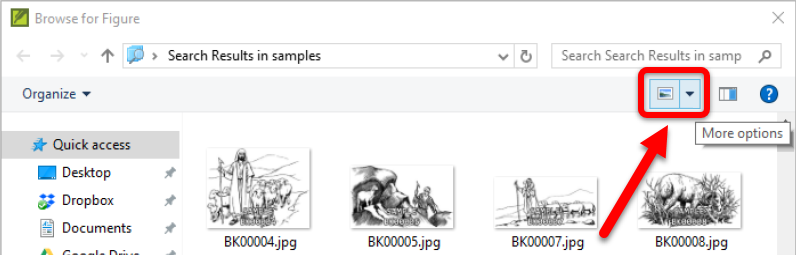
- In the upper-right corner, click the drop-down arrow to open the view options:
-
- Select “Extra large icons”:
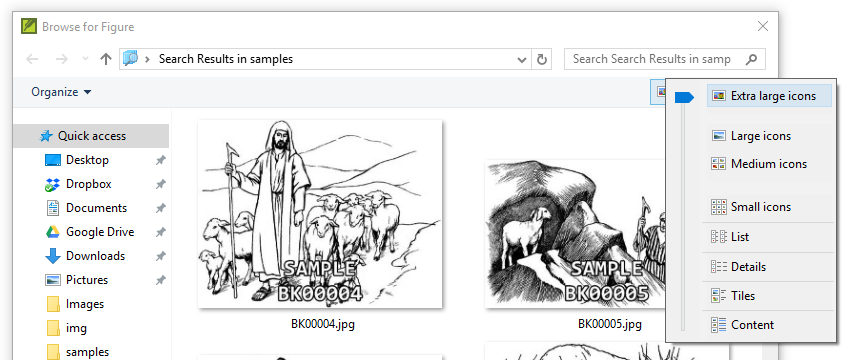
- Select “Extra large icons”:
Optional View Settings:
-
- To make space for even more images, you may want to hide the navigation pane: go to Organize > Layout and uncheck Navigation pane.
- You can resize this window to fit more images by dragging a corner or edge, or by double-clicking on the title bar to maximize it.
- Double-click on an image from the search results to select it.
Enter Caption and Location
- Enter a Caption:
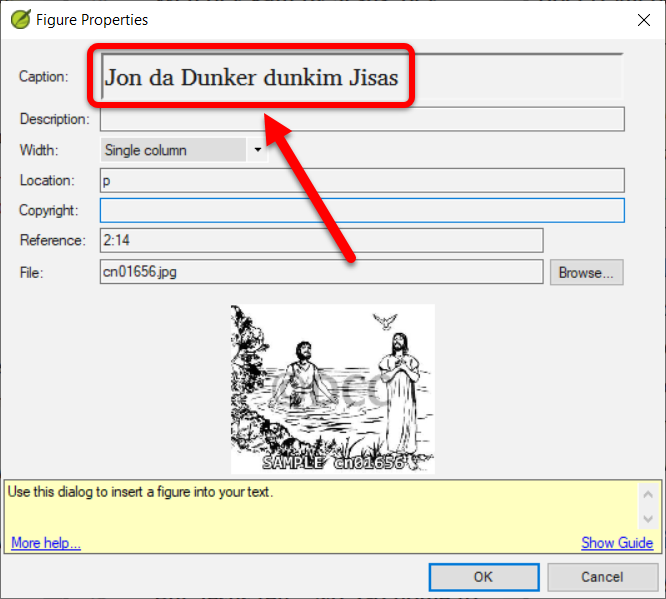
- Best Practice: If you only want this illustration to be used in print publications or you don’t expect to receive permission to use it in app or Web, enter “p” for Location.
- See How to tell Paratext which images are for print and which are for electronic outputs.
- Click OK.