Making the Maps
Once your labels are ready…
Data Merge File vs Pre-filled File
Once you’ve completed your label work, it’s time to export it to a file. (Maps you’ve saved are already IDML data merge files that you can use in InDesign.)
- If you have InDesign, export the labels directly into a pre-filled IDML file.
- Otherwise, to use them with Map Creator, you can export the labels directly into a pre-filled MAPX file.
- It’s also possible to export to a .MAPX.TXT file to import into Map Creator, but this is a hassle and can result in misalignment of labels with the English glosses, so this option is not recommended.
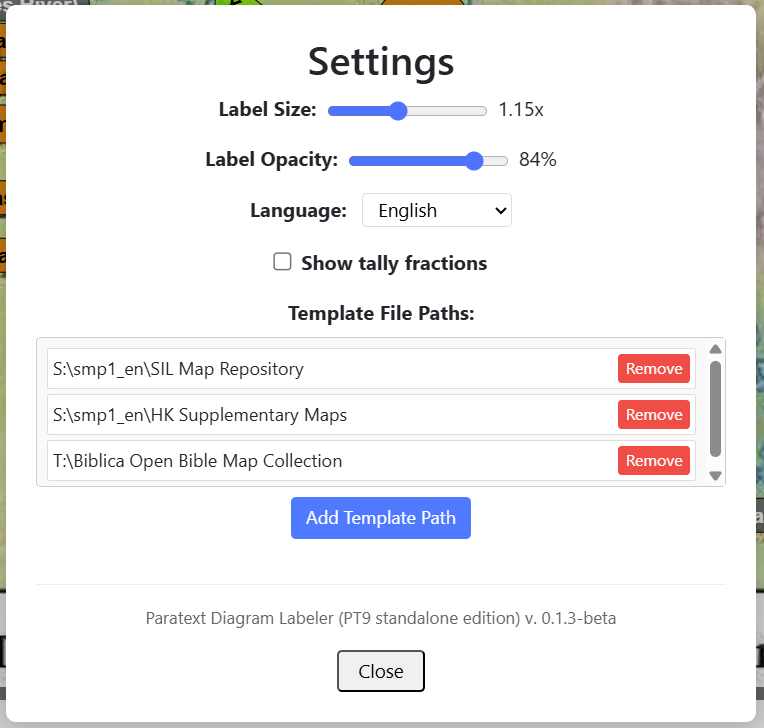
Note: You will only see the option for exporting to a pre-filled file if the Labeler can find the template file you’d need to use. So, for a map from the SIL Map Repository, you’d need to download (and unzip) the SIL Map Repository folder. Then, you’d need to specify the path to that folder in the Settings (⚙️), like this:
If, after editing an exported IDML file, such as to adjust styles and/or label positioning, you want to use your new file as the source for an updated export, simply save a copy in IDML format, and when exporting, point the Labeler at this as the file to use.
Reasons to Export to a Pre-filled Document
- Save yourself the hassle of importing into Map Creator or setting the Data Merge source in InDesign.
Reasons to Use Data Merge Files
- If you encounter problems with the pre-filled route, this is a backup option.
Next Steps
The creating finished maps varies depending on whether you’re using Adobe InDesign (IDML files) or Map Creator (MAPX files).
For detailed instructions and tips on how to make the maps, please visit the SIL Map and Illustrations Repository:
What You’ll Find
The SIL Map and Illustrations Repository provides:
- Step-by-step instructions for data merging in InDesign
- Guidance on importing translations into Map Creator
- Tips for adjusting and finalizing your maps
- Best practices for map typography and layout
- Access to map templates