Selecting a Diagram Template
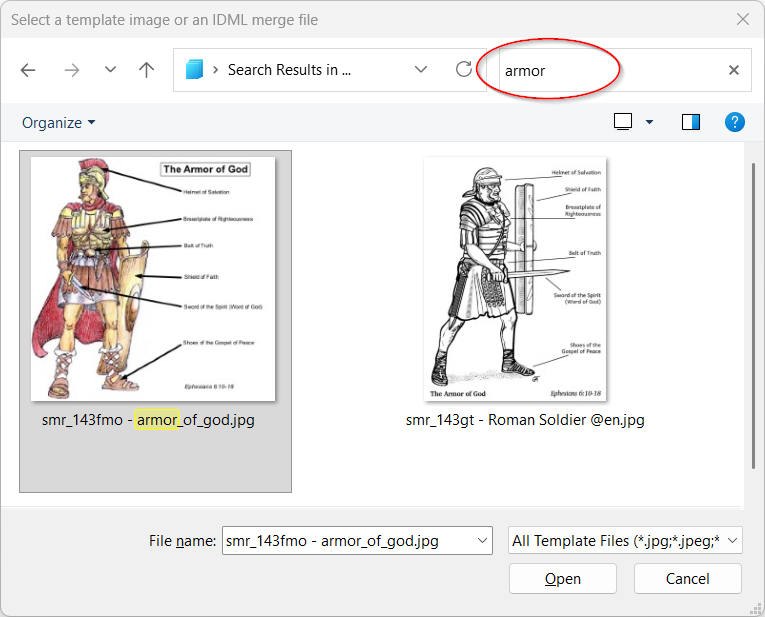
The left pane allows you to filter the available templates by a variety of properties:
- Keyword search:
- Keyword: e.g. Armor
- Chapter reference. e.g. ACT08
- Diagram group name: e.g. SRV
- Format: IDML or MAPX
- Collection: e.g. Biblica Open Bible Map Collection
- Saved status: Whether to include only those maps that you have already saved labels for
- Color / Blue-brown / Grayscale
- Relief / Flat
As you add filters to narrow the selection down, the available items listed are reduced accordingly.
Use the Up and Down keys to quickly cycle through the matching options, and as you do so, the preview on the right-side pane is updated to show you a sample of the map, possibly including multiple base layers that can be selected for the map.
To select a diagram for use, do any of the following:
- Double-click on it.
- Press Enter.
- Click the “Select Diagram” button.
To select the entire filtered set of diagrams to work with, click the “Select Group” button.
At the top of the left pane is an area with information on the currently selected diagram.
The “Base Layers” setting indicates which of the following types of base layers this map supports:
- BWR: black & white, relief
- BWF: black & white, flat
- BBR: blue & brown, relief
- BBF: blue & brown, flat
- FCR: full color, relief
- FCF: full color, flat
- MCR: muted color, relief